Skip to content

Spell Book Interface Overview

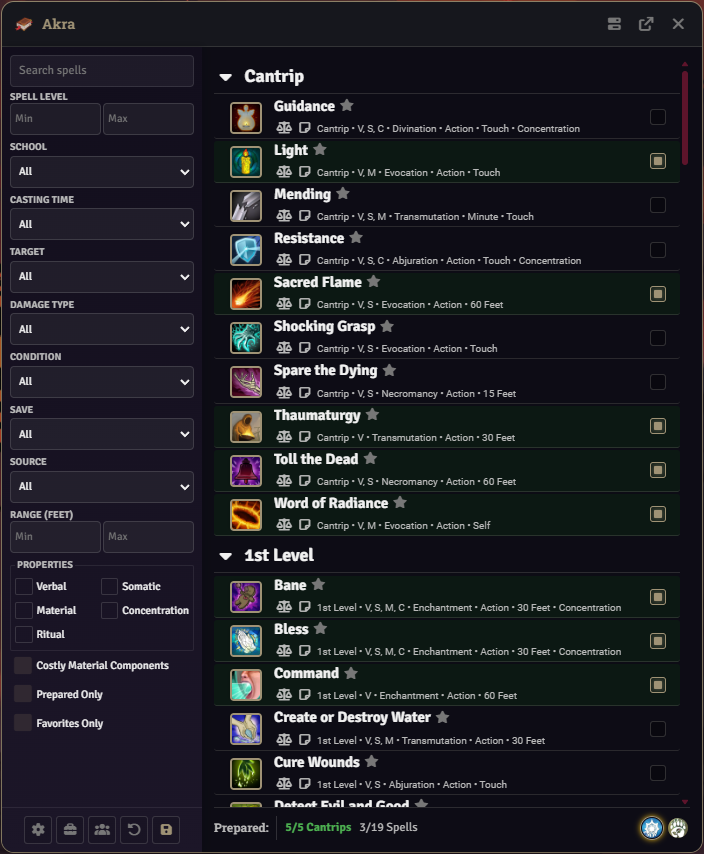
The Spell Book is the player-facing application for preparing and managing spells on a character. It supports multiclass casters, per-class spell lists, wizard spellbook learning, loadouts, spell notes, favorites plus a side-by-side comparison dialog.

Player Spell Book - dark theme

This page documents the player Spell Book. For the GM-facing tool that builds and edits spell lists, see SpellList-Manager.

[!TIP] The Spell Book is fully compatible with Tidy5e. Both the default dnd5e character sheet theme and the module’s polished light theme (parchment texture, copper accents) are fully supported.


The Spell Book can be opened from:

  • The book icon on the spells tab of a character sheet.
  • A Macro on the hotbar.

The window is draggable by its custom header and remembers its last position per client. The window can be detached into a separate browser window. Any child dialogs (comparison, loadouts, spell notes, class rules, party manager, spell list manager, wizard learn prompt, long-rest swap, etc.) automatically route to the detached window while attached.


The window is divided into three areas:

  1. Header. Actor icon, actor name, a GM-only button that opens the Spell List Manager on the active tab’s class list, a detach/attach toggle, and a close button.
  2. Sidebar. Name search, filter controls, and an action row (Class Rules, Loadouts, Party Manager when applicable, Reset, Save).
  3. Tab area. One tab per spellcasting class, plus a separate Learn tab for each wizard-enabled class. The active tab fills the remaining space; a footer at the bottom of every tab holds prepared/cantrip counters and the per-class tab navigation.

The header is the drag handle. Clicks on header buttons do not initiate dragging.


Each spellcasting class on the actor produces its own tab, identified by class name and class icon. Each tab shows the spells the class can prepare, grouped by spell level. Switching tabs preserves any unsaved checkbox changes on the tab being left: pending changes are tracked per tab and re-applied when you return.

If a class has no spell list assigned in Class Rules (classRules.customSpellList is unset), the tab displays a notice instead of a spell list:

No spell list assigned Open Class Rules and choose a spell list for this class. [Open Class Rules]

The Open Class Rules button is rendered for GMs only. It opens the Class Rules dialog and scrolls to the affected class’s custom-spell-list field. Non-GM players see the notice title and hint without the button and must ask the GM to assign a spell list.

Each wizard-enabled class also gets a separate Learn tab (labelled with the class name and the module icon). The Learn tab lists every spell the wizard could add to their spellbook, with a learn / scroll-learn / unlearn action on each row. See the Wizard Spellbook Tab section below.

The footer of every tab shows:

  • A label (Prepared for prepare tabs, the class name for learn tabs).
  • A prepared cantrip counter (current/max Cantrips).
  • A prepared spell counter (current/max Spells) for prepare tabs, or the wizard total/free counters for learn tabs.
  • An icon-only nav of all class tabs on the right side.

The cantrip and spell counters show an at-max highlight (green, reading as “at capacity”) when the current count reaches the printed maximum. There is no hard cap; see Spell Preparation System for over-limit behavior.


GM-Only: Open Spell List Manager (bars-progress icon)

Section titled “GM-Only: Open Spell List Manager (bars-progress icon)”

Visible to GMs only. Opens the SpellList-Manager directly to the active tab’s assigned class spell list. If the class has both a customSpellList and a customSubclassSpellList configured in Class-Rules, a small picker dialog appears first listing both lists grouped by “Class Spell List” and “Subclass Spell List”. If the class has no list configured, a warning notification is shown.

Toggles between the in-app window and a detached browser window. Swaps the icon between an outward-arrow (detach) and a download-to-square (attach). Reopens all future child dialogs inside the active surface.

Plays a closing animation and closes the Spell Book.


Substring match against spell names, debounced. The search box at the top of the sidebar narrows the active tab as you type. Matching is case-insensitive and not anchored.

Filter controls render once the full spell index has loaded. All filters combine with the name search; results update as soon as a value changes.

  • School
  • Casting Time
  • Target
  • Damage Type
  • Condition
  • Save (requires): Yes/No/All
  • Source: compendium book
  • Spell Level: min/max (two number inputs, 0–9). Leave either blank for open-ended.
  • Range (feet/m): min/max (two number inputs). The unit label auto-switches based on dnd5e.utils.defaultUnits('length').

Tri-state property toggles

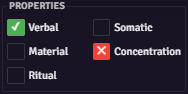
Five buttons in a two-column grid: Verbal, Somatic, Material, Concentration, Ritual. Click cycles ignore → include → exclude → ignore. Right-click cycles backwards. Semantics:

  • ignore: no filtering for this property.
  • include: spell must have the property.
  • exclude: spell must not have the property (indicator turns red with an × icon).

Stored internally in filterState.properties as { vocal: 'include', somatic: 'exclude', material: 'include', concentration: 'ignore', ritual: 'include' }. Only non-ignore entries are kept.

  • Costly Material Components: matches spells whose system.materials.cost > 0, or whose materials text or description contains the localized “consumes” keyword, or matches a \d+\+? gp pattern.
  • Prepared Only: shows only spells currently marked prepared (via live checkbox state).
  • Favorites Only: shows only starred spells.

The bottom of the sidebar holds the action row:

ButtonAction
SettingsOpen the Class-Rules dialog for this actor. GM only.
LoadoutsLeft-click opens the Loadout Selector for the active class. Right-click opens a context menu of saved loadouts for the active class; click an entry to apply it immediately.
Party ManagerOpen the Party Spells Interface. Right-click toggles party mode for this actor. Hidden when the actor is not in a party.
ResetClear all filters. Shift-click additionally unchecks every preparation checkbox on every tab.
SavePersist all pending preparation changes across every class tab.

Each row in the spell list is rendered from the spell-item component and contains:

  • Icon. A dnd5e content link to the spell document (drag-enabled).
  • Name. Clickable spell title.
  • Indicators to the right of the name:
    • Favorite star (toggle on click; stored per-user, per-actor).
    • Tag chips: cross-class (prepared by another class), always-prepared, granted, pact, and ritual.
    • Party icons showing which other party members have the spell prepared (when party mode is enabled).
  • Subtitle under the name, with optional compare and notes icons followed by metadata such as 2nd Level - V, S, M - Abjuration - Action - 30 Feet. Each metadata field can be toggled in Details-Customization.
  • Right-side action depending on tab mode:
    • Prepare tabs: a preparation checkbox.
    • Learn tabs: a learn / scroll-learn button or an “in spellbook” badge with an unlearn affordance.

Toggling a preparation checkbox marks the row as prepared/unprepared and updates the cantrip or spell counter in the footer. Preparation state in the UI is read from live checkbox state, not from saved actor data. Changes are kept in memory (#pendingChanges) until the Save button is pressed; switching tabs does not lose unsaved changes.

There is no hard cap that prevents toggling spells past the printed maximum. Exceeding the printed maximum is allowed. The GM may be notified via the world setting Notify GM on Spell Changes (NOTIFY_GM_ON_SPELL_CHANGES), unless the actor’s per-class Spell Book Settings override is set (also boolean, defaults to the world setting). Cantrip swap timing rules are still enforced and can warn the user when a cantrip change is not allowed in the current swap window.

The star button toggles the spell on the actor’s favorites list. State is stored in the module’s user-spell-data compendium pack (per-user, per-actor) and reflected by the Favorites Only filter toggle.

The notes icon opens the Spell Notes dialog for the selected spell. Full reference: Spell Notes.

Clicking the scale-balanced icon toggles a spell in or out of the comparison set. When the set reaches two or more spells, the Spell Comparison dialog opens. Clicking again removes a spell; when the set drops below two the dialog closes automatically. There is no upper limit. The draggable dialog widens as you add more spells and renders them side-by-side with name, image, level, school, casting time, range, duration, components, and damage formulas. The dialog supports detach and follows the parent Spell Book’s detached state.


The Save button in the sidebar collects every preparation checkbox across every loaded tab (reapplying any pending changes from non-active tabs first) and writes the per-class prepared spell sets to the actor in one update. After saving:

  • A confirmation notification is shown.
  • Each checkbox’s wasPrepared baseline is updated so subsequent saves can compute deltas.
  • For wizard-enabled classes whose Class Rules set ritualCasting to always, ritual spells from the wizard’s spellbook are auto-injected as ritual-mode items.
  • Stale module-managed ritual spells from a previous mode are cleaned up.
  • If chris-premades is active and CPR_COMPATIBILITY is enabled, a CPR actor refresh runs.

To revert pending changes without saving, use the Reset button (Shift-click to also clear preparation checkboxes) or close the Spell Book without pressing Save.


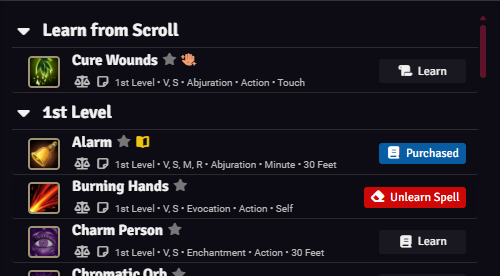
Wizard Learn tab with learnable, scroll-learnable, and in-spellbook rows

A wizard-enabled class gets a second tab dedicated to its spellbook. Each row shows one of three states:

  • Available to learn. A Learn Spell button. Free spells (initial allotment, level-up grants) are added directly. Other spells open a confirmation dialog quoting the gold cost and copying time, computed by WizardBook.getCopyingCost / getCopyingTime. If DEDUCT_SPELL_LEARNING_COST is enabled, currency is deducted on confirm.
  • Available from a scroll. A Learn Spell button with a scroll icon. Triggers learnSpellFromScroll, which adds the spell and (if CONSUME_SCROLLS_WHEN_LEARNING is on) decrements or deletes the scroll item.
  • Already in spellbook. An In Spellbook badge with a learning-source icon (book / scroll / cart / level-up arrow). Hovering reveals the unlearn affordance, which removes the spell from the wizard journal.

The footer counters show total/max known spells and remaining free copies for the current level.


The Loadouts button (toolbox icon) opens the Spell Loadouts selector, scoped to the active class. Right-clicking the same button opens a quick-select context menu listing saved loadouts. Clicking an entry applies it immediately without opening the full dialog. The menu is refreshed on every open.


The Class Rules button opens the per-actor, per-class configuration dialog. This is the canonical place to:

  • Assign a custom spell list for a class (customSpellList) and, optionally, a custom subclass spell list (customSubclassSpellList). Class lists resolve directly from these two fields. There is no automatic subclass-registry fallback.
  • Configure ritual casting mode (none / prepared / always).
  • Set spell preparation and cantrip preparation bonuses.
  • Adjust class-specific cantrip and spell swap rules.
  • Toggle the per-class GM notification override.

When opened from the “no spell list assigned” notice, the dialog scrolls to the affected class’s custom spell list field.


After completing a long rest, the actor receives a LONG_REST_COMPLETED flag. The Spell Book detects this on open and exposes the cantrip / spell swap window for classes that allow long-rest swapping. A long-rest swap dialog can prompt the player automatically; setting DISABLE_LONG_REST_SWAP_PROMPT (client) suppresses the automatic prompt without disabling the swap window itself.

The swap workflow remains accessible any time the swap window is open; the prompt setting only governs whether the dialog appears unprompted.


When the actor belongs to a party group, a Party Manager button appears in the sidebar action row. Left-click opens the Party Spells Interface. Right-click toggles party mode on the actor: party mode causes spell items to display small avatar icons for other members who have the spell prepared. Toggling party mode reloads the active tab.

Party mode honors PARTY_MODE_TOKEN_LIMIT for how many party member icons render per spell.


The Details Customization dialog is registered as a settings menu (paint-palette icon in the module settings) and controls which UI elements render in the player Spell Book:

  • Per-element toggles for Favorites, Compare, Notes, Spell Level, Components, School, Casting Time, Range, Damage Types, Conditions, Save, Concentration, and Material Components.

The same dialog has a parallel set of toggles for the GM-facing interface; favorites and notes are always disabled for GMs.


Settings keys frequently relevant to this interface:

KeyScopePurpose
NOTIFY_GM_ON_SPELL_CHANGESworldNotify GM when a player exceeds preparation limits.
SPELL_NOTES_DESC_INJECTIONclientInject spell notes into descriptions (off / before / after).
SPELL_NOTES_LENGTHworldMax characters per spell note.
DISABLE_LONG_REST_SWAP_PROMPTclientSuppress the post-long-rest prompt.
CONSUME_SCROLLS_WHEN_LEARNINGworldDecrement scroll items after wizard scroll-learning.
DEDUCT_SPELL_LEARNING_COSTworldDeduct currency when copying spells.
PARTY_MODE_TOKEN_LIMITclientMaximum party-member icons per spell row.
SPELL_BOOK_POSITIONclientPersisted window position.

The Spell Book emits the following hooks:

  • spellBookOpened: { actor, app } on first render.
  • spellBookClosed: { actor } on close.