
Player Quick Start
For every control, see SpellBook Interface Overview.
Opening the Spell Book
Section titled “Opening the Spell Book”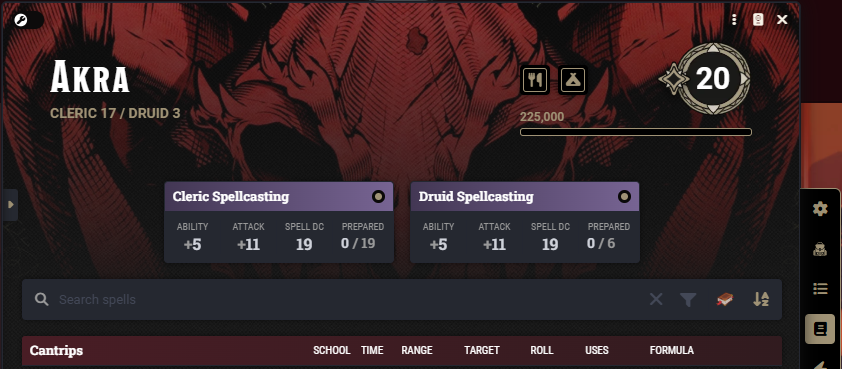
A player opens the Spell Book from the button on the Spells tab of their character sheet. The button appears on the system sheet and on Tidy5e, for characters with a spellcasting class or with spells granted by a species or feat. The detach button in the window header moves the Spell Book into its own browser window.
Nothing in a class tab?
Section titled “Nothing in a class tab?”A class with no assigned spell list shows a notice in its tab. GMs see an Assign a Spell List button that opens Class Rules. Players see a hint to ask the GM.
If a list is assigned but every spell on it comes from a compendium source disabled in the Compendium Browser, the tab shows “No spells available” instead.
Preparing spells
Section titled “Preparing spells”A player picks a class tab, checks spells, and clicks Save in the sidebar. Unsaved changes persist across class tabs, and one save applies them all. Each class prepares independently; see Multiclass Spellcasting.
The footer shows the active class’s prepared spell and cantrip counts and highlights them at capacity. Going over a class limit does not block saving. With Notify GM on Spell Changes enabled, your change report flags the overage. See Spell Preparation System.
Always-prepared and granted spells show an icon whose tooltip names the source.
Spell row icons
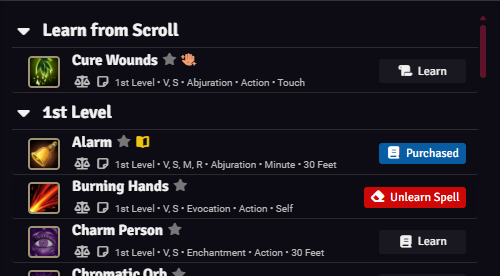
Section titled “Spell row icons”- Star: add or remove the spell from the character’s Favorites.
- Sticky note: open Spell Notes.
- Balance scale: add to comparison.
Each icon can be hidden in Details Customization.
Filters and Reset
Section titled “Filters and Reset”Property filters cycle through ignore, include, and exclude on click, and backward on right-click. The Reset button clears all filters. Shift-clicking Reset also unchecks every preparation on every class tab, and nothing is saved until Save.
Loadouts
Section titled “Loadouts”The Loadouts sidebar button opens Spell Loadouts, which save and reload prepared spells per class. Right-clicking the button lists the active class’s loadouts, and clicking one applies it immediately.
Wizard spell book tab
Section titled “Wizard spell book tab”Wizards, and classes with Force Wizard Mode enabled in Class Rules, get an extra spell book tab per wizard class. Players learn spells into the spellbook from it. See Wizard Spellbook Management.
Long rest swap prompt
Section titled “Long rest swap prompt”When a class’s swap timing is set to long rest in Class Rules, finishing a long rest prompts the player to open the Spell Book and swap. A client setting replaces the prompt with a notification; see Installation and Settings.
Party Mode
Section titled “Party Mode”When the actor belongs to a group actor, the sidebar shows a Party Spells button. Clicking it opens the Party Spell Coordinator. Right-clicking it toggles party indicators, which show avatars of other party members who have a spell prepared.