
Character Creation Wizard
The creation wizard builds a character from a blank slate. Open it from the Hero Mancer button in the Actor Directory header, or pick Create with Hero Mancer 2 in the Create Actor dialog. A name typed in that dialog carries into the wizard.
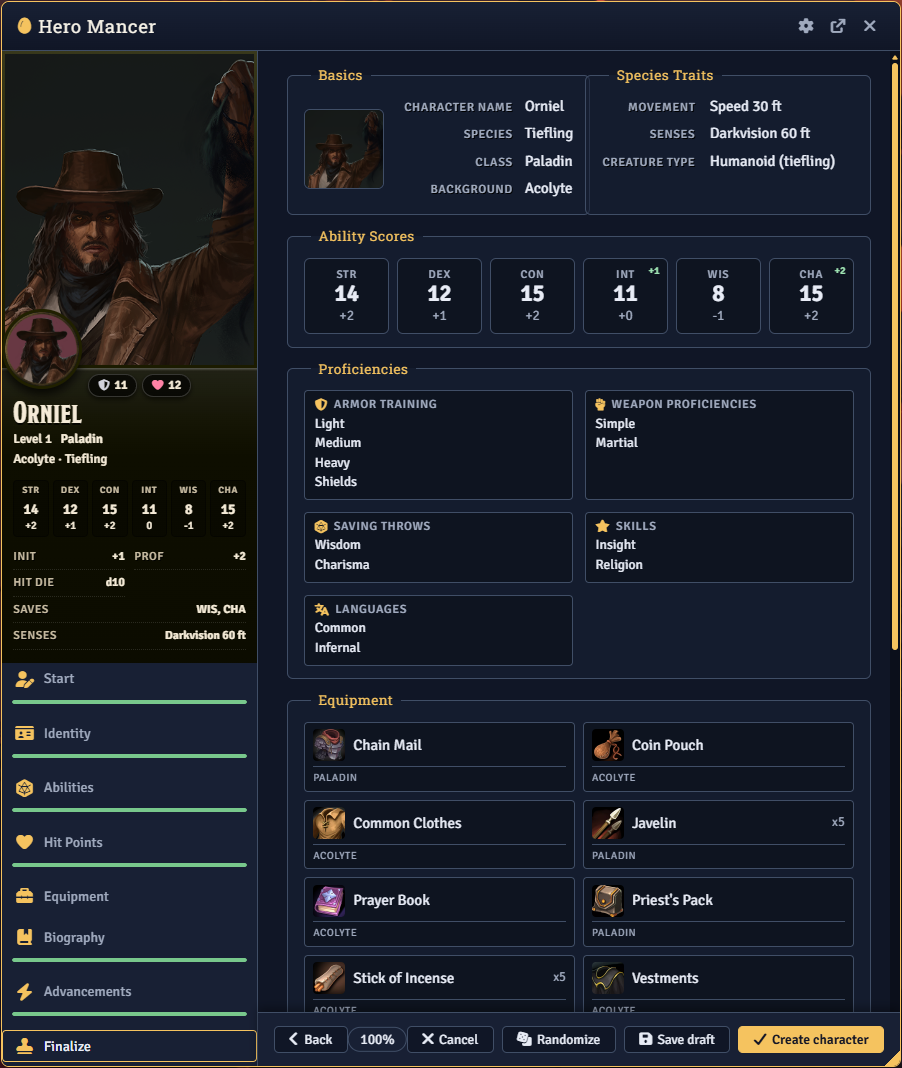
Window layout
Section titled “Window layout”A header button detaches the wizard into its own browser window. A GM also gets a header button that opens the module settings.
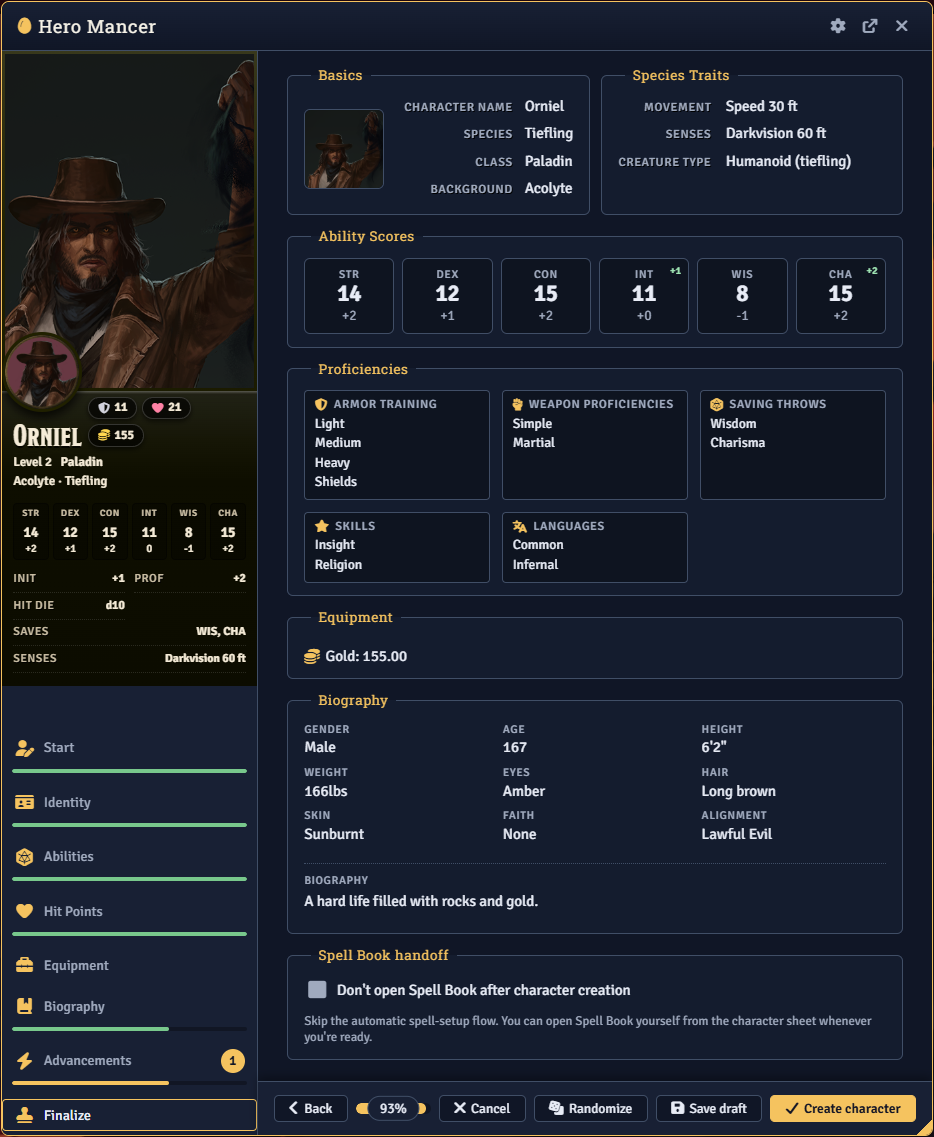
Each tab in the list has a progress bar and a badge counting the choices still open on it. Hovering the badge lists the missing fields. Identity’s sub-tabs show their own counts.
Live preview
Section titled “Live preview”The sidebar preview updates as the player makes choices. It shows the portrait, name, class and level, origin, armor class, hit points, initiative, speed, proficiency bonus, hit die, saving throws, and senses. Ability scores join the panel once they are assigned. Coin remaining appears once the player has gold to spend in the shop.
Saving and leaving
Section titled “Saving and leaving”Back and Next move through the tabs, stepping through Identity one sub-tab at a time. On the last tab, Next becomes the create button. Save Draft stores progress for a later session. A Randomize button also appears when the randomizer is enabled. See Randomizer and Compare.
Closing the wizard with unsaved changes asks the player to save a draft, discard the changes, or stay.
Start tab
Section titled “Start tab”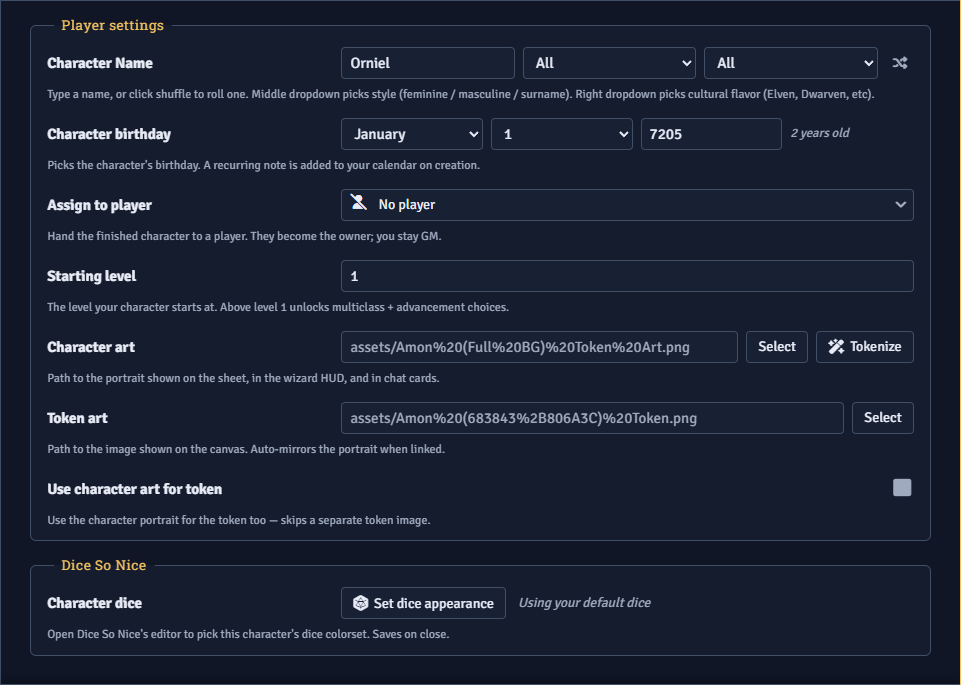
- Name. The player types a name or clicks the shuffle button for a random one. The two dropdowns beside the field set the random name’s style and culture.
- Starting level. Players can change it when you allow it. Otherwise it shows the campaign default. A GM can always change it.
- Character art and token art. The player picks a portrait and a separate token image. Use Character Art for Token reuses the portrait instead.
- Player color and pronouns. When you allow player customization, the player sets these here. They are saved to the player’s user account when the character is created.
- Character dice. When Dice So Nice is active and 3D dice are enabled in the settings, a button opens the Dice So Nice editor. The colorset picked there is saved to the new character.
- Token ring. When you allow token ring customization, the player can turn on the dynamic ring and set its ring and background colors.
Picking art requires the File Browsing permission. Without it, both art fields are disabled.
GM assigning a character to a player
Section titled “GM assigning a character to a player”When a GM runs the wizard, the Start tab adds an Assign to Player dropdown. That player owns the new actor, and it becomes their assigned character.
Identity
Section titled “Identity”The Identity tab has sub-tabs for Background, Species, and Class, in the order set on the Settings page. A Subclass sub-tab appears after Class once a class reaches its subclass level. A description of the picked option loads below each picker.
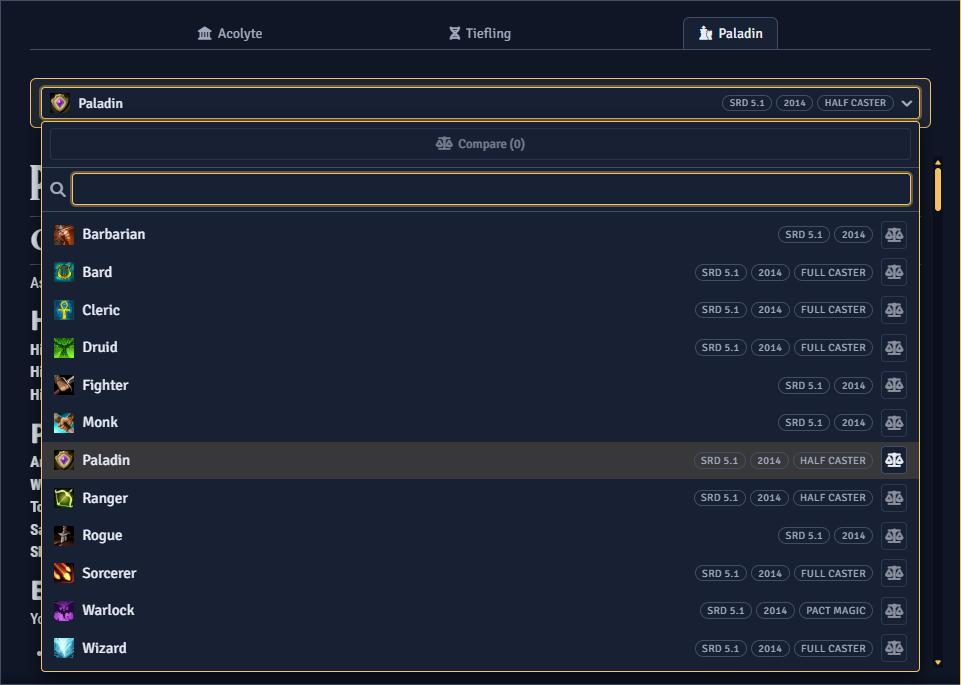
Each picker lists its options alphabetically. Small pills on each option note its mechanics, and the search box matches both names and pill text. Unless you disable it, the Background list starts with a Custom Background entry that opens the builder. See Custom Backgrounds.
Class and multiclass
Section titled “Class and multiclass”At level 1 the Class sub-tab is a single picker. When the starting level is above 1 and multiclassing is allowed, it adds level steppers and an Add Multiclass button. The primary class grants the starting equipment and level-1 maximum hit points. A banner warns when the assigned levels do not match the starting level. A warning also flags an added class whose multiclass prerequisite is not met.
With more than one class picked, pills above the description switch which class it shows. The Subclass sub-tab has one picker per class that has reached its subclass level, and uses the same pills.
Comparing options
Section titled “Comparing options”Each option in the Identity pickers has a pin button. Pin two or more of the same kind to compare them side by side. See Randomizer and Compare.
The remaining tabs
Section titled “The remaining tabs”- Abilities. Scores are generated and assigned by the methods you allow. See Ability Scores.
- Hit Points. Hit points are set by the methods you allow. See Hit Points.
- Equipment. The player takes granted equipment or starting wealth, then shops with any gold on hand. See Equipment and Gold.
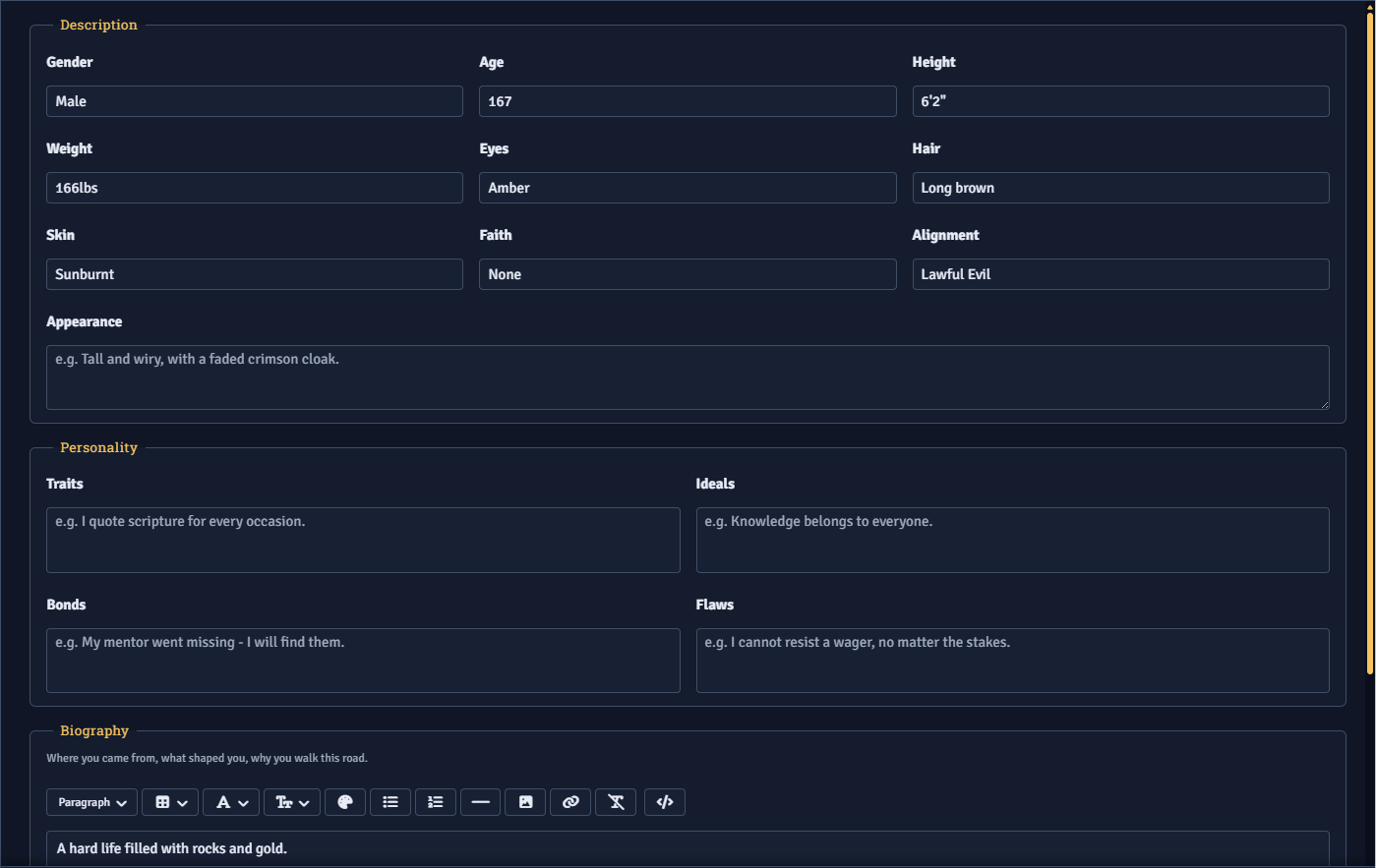
- Biography. The player fills in physical details, alignment, faith, personality traits, and backstory.
- Advancements. The player resolves the choices granted by the character’s class, species, and background. See Advancements.
- Finalize. A review of everything chosen before the character is created.
Finishing up
Section titled “Finishing up”Create Character on the last tab creates the character. If required choices are still incomplete, a prompt lists them and warns that advancements may be left unset. The player can go back or create anyway.
When you require approval, submitting closes the wizard. Reopening it while the submission is pending shows a banner, and the tabs stay read-only until you approve or reject it. See GM Approval.