Skip to content

Settings Reference

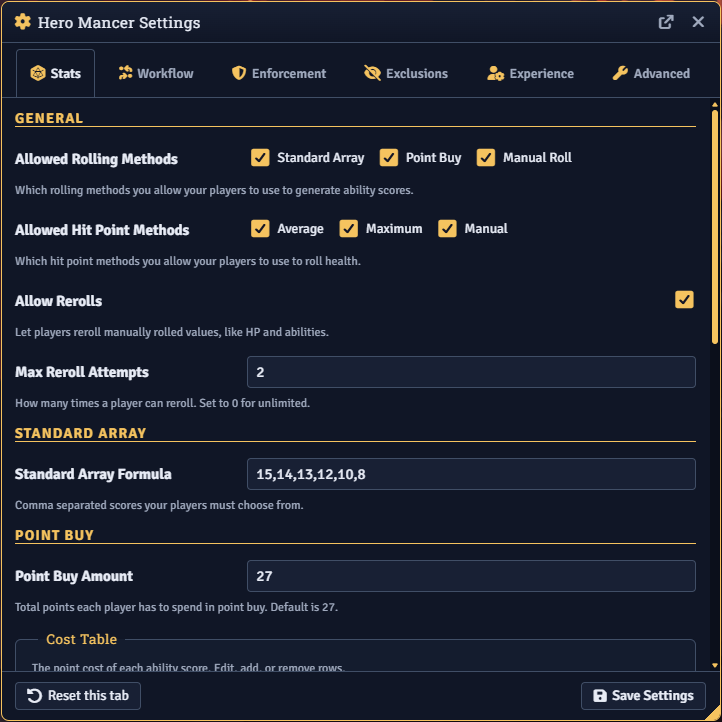
Most Hero Mancer settings do not appear in Foundry’s own module configuration list. They live in the Hero Mancer 2 dashboard, a tabbed panel you open from the module’s settings menu (the Open Settings button under the Hero Mancer 2 Settings menu entry). The panel groups everything under six tabs: Stats, Workflow, Enforcement, Exclusions, Experience, and Advanced.

The Hero Mancer settings dashboard

Every setting is world-scoped (the GM sets it once for the whole table) unless noted as Per-client, which means each user keeps their own value. A few settings are conditional: they only appear when the module they depend on is installed and active.

Each tab has a Save Settings button and a Reset this tab button. Saving confirms with “Settings saved.”

This tab controls how ability scores and hit points are generated. For how players use these methods, see Ability Scores and Hit Points.

SettingDescriptionDefault
Allowed Rolling MethodsWhich methods players may use to generate ability scores (Standard Array, Point Buy, Manual Roll, Manual Entry).All enabled
Allowed Hit Point MethodsWhich hit point methods players may use to roll health (Maximum, Average, Manual).All enabled
Allow RerollsLet players reroll manually rolled values, such as hit points and abilities.On
Max Reroll AttemptsHow many times a player can reroll. Set to 0 for unlimited.2
SettingDescriptionDefault
Standard Array FormulaComma-separated scores players must choose from.15,14,13,12,10,8
SettingDescriptionDefault
Point Buy AmountTotal points each player has to spend in point buy.27
Cost TableThe point cost of each ability score. Edit, add, or remove rows.Standard cost table
SettingDescriptionDefault
Manual Roll FormulaThe dice formula used by the Manual roll method.4d6kh3
SettingDescriptionDefault
Default Ability ScoreThe starting value for ability scores when creating a new character.8
Minimum Ability ScoreThe lowest value allowed for ability scores during creation.8
Maximum Ability ScoreThe highest value allowed for ability scores during creation.15
Multiclass ability thresholdMinimum ability score required to multiclass into a class.13
Disable MulticlassingPrevent players from adding a second class during character creation or level-up.Off
SettingDescriptionDefault
Level 1 Uses Max Hit DieThe primary class gets maximum HP at first level.On
Reroll 1s on Hit DiceManual HP rolls reroll any 1 on the first try.Off

This tab shapes the creation flow: starting level, gold, the order of the identity tabs, and how identity choices behave.

SettingDescriptionDefault
Starting LevelLevel new characters start at.1
Allow Player Level OverrideWhen on, players can change their starting level on the Start tab. When off, the campaign default is enforced.Off
SettingDescriptionDefault
Bonus Starting Gold FormulaRoll formula or fixed amount added to every character’s starting gold pool. Leave blank to disable. Dice formulas require a player roll on the Granted Equipment tab; fixed amounts apply automatically.Blank (disabled)
Refund Skipped EquipmentUnchecking a granted equipment item adds its price to the player’s shop gold.On

See Equipment and Gold for how players spend this.

SettingDescriptionDefault
Identity OrderThe order the Background, Species, and Class tabs appear in the wizard.Background, Species, Class
Lock identity decisions to rulesetWhen on, the first identity pick locks every other identity choice to its ruleset (2014 or 2024). Options with no ruleset stay available to all.Off

The identity portion of the wizard is split across three tabs: Background, Species, and Class.

Tab order. The Identity Order setting sets the order those three tabs appear in. Reorder the rows to match how you want players to approach a character. The order you set is the order every player sees.

Locking to a ruleset. The system’s content comes in two rulesets, the 2014 and 2024 versions, and many options exist in both. When Lock identity decisions to ruleset is on, the first identity option a player picks decides the ruleset for the rest. After that first pick, the other identity tabs only offer options from the same ruleset. Options that carry no ruleset stay available no matter what was chosen first. When off, players can freely mix 2014 and 2024 options.

For how these choices play out from the player’s seat, see Character Creation.

SettingDescriptionDefault
Enable Randomizer?Allows users to randomize aspects of character creation. See Randomizer.On
Trim Sourcebook SuffixHides the sourcebook tag in option names, so “Tiefling (PHB)” becomes “Tiefling”.On
Custom Spellcasting FocusItems treated as valid spellcasting focuses, merged into the system list and available in the equipment shop.Empty

Trim Sourcebook Suffix. Many compendium entries carry a source tag in their name. This setting hides that parenthetical. Display only; nothing about the underlying option changes. Turn it off when you run multiple sourcebooks side by side and want players to see which book each option comes from.

Custom Spellcasting Focus. Some tables use homebrew or third-party items as spellcasting focuses. This setting lets you nominate items to be treated as valid focuses. Anything you add is merged into the system’s own focus list and becomes available in the equipment shop. A player outfitting a caster can buy it like any other focus. Build the list with the Add Item button; each row has a remove control. See Equipment and Gold for how focuses and starting gear come together.

This tab decides what a player must complete before submitting and whether submissions go through GM review.

SettingDescriptionDefault
Require Biography FieldsEvery field on the Biography tab must be filled before a character can be submitted.Off
Require Character ArtCharacter art is required. Token art is also required unless “use character art for token” is checked.Off
SettingDescriptionDefault
Require GM ApprovalPlayer characters are queued for GM review instead of being created directly. GMs bypass this.On
Archive SubmissionsKeep approved and rejected submissions in a journal instead of deleting them on resolve.Off

Both Approval settings also appear in Foundry’s built-in module list. For the review workflow, see GM Approval.

This tab hides specific content from the wizard without disabling any compendium. Most worlds enable far more compendiums than you want players choosing from; the exclusion list lets you hide specific entries.

Each kind of option has its own bucket:

  • Species
  • Background
  • Class
  • Subclass
  • Feats
  • Items

The Feats bucket browses true feats only.

Each bucket has a Browse button. Browse the matching compendiums, check the entries you want gone, and confirm. Anything you exclude no longer appears in that part of the wizard or in the equipment shop, and excluded feats are removed from the feat picker. A small “{count} hidden” badge shows how many entries each bucket is hiding.

Exclusions apply to everyone using the wizard, including you. If a species or class you expect is missing during creation, the Exclusions tab is the first place to check.

This tab covers what players are allowed to customize and what Hero Mancer posts to chat.

SettingDescriptionDefault
Allow Player CustomizationLet players pick their player color and pronouns during creation.Off
Allow Token Ring CustomizationLet players enable the dynamic token ring and pick its ring and background color.Off
Enable 3D Dice for Ability RollsShow 3D dice animations for ability score rolls using Dice So Nice. Per-client. Conditional: only appears when the Dice So Nice module is active.On
SettingDescriptionDefault
Publish Starting Wealth RollsPublish starting wealth rolls to chat for all users.On
Publish HP RollsPublish manual hit point rolls to chat for all users.On
Publish Creation SummaryPost a chat card summarizing the new character. Choices: Public, Whisper GM + Owner, Off.Public
Publish Level-Up SummaryPost a chat message when a level-up is completed. Choices: Public, Whisper GM + Owner, Off.Public

The Level-Up summary fires after a Level Up completes.

This tab holds host behavior, the art directory, and diagnostic tools.

SettingDescriptionDefault
Hide Other Create OptionsPlayers see only the Hero Mancer 2 option in the Create Actor dialog. GMs see all options.Off
Show WelcomeShow the Hero Mancer welcome dialog once per session. Per-client.On
Disable Welcome PopupSuppress the welcome dialog for every user in the world, overriding each player’s Show Welcome setting.Off

Hide Other Create Options. By default the system’s Create Actor dialog lists Foundry’s own actor creation options alongside the Hero Mancer button. With this on, players see only the Hero Mancer button; you as the GM still see every option. Use it when you want players going through the wizard and nowhere else.

SettingDescriptionDefault
Art DirectoryFolder the player character art picker is locked to, chosen with a folder picker. GMs are not restricted./

When a player opens the picker to choose character or token art, it is locked to the folder set here. Players cannot browse above it or switch data sources, so they only pick from the art you curate. Point it at the folder where you keep your campaign’s portraits.

SettingDescriptionDefault
TroubleshooterA button that opens the Troubleshooter to generate a diagnostic report.Open Troubleshooter
Logging LevelHow much Hero Mancer logs to the browser console. Choices: Off, Errors, Warnings, Verbose. Per-client.Warnings
Tokenizer CompatibilityUse Tokenizer 2’s editor for character portrait and token art. Conditional: only appears when the Tokenizer 2 module is active.On

See Integrations for the modules that the conditional settings above depend on.

A few entries open dedicated windows rather than holding a value:

  • Hero Mancer 2 Settings: the Open Settings button that opens the tabbed dashboard described on this page.
  • Pending Approvals Queue: the GM-side queue browser for reviewing pending character submissions. See GM Approval.
  • Troubleshooter: generates a diagnostic report you can copy or download for a bug report. It is reachable from the Advanced tab’s Tools group and is covered in Troubleshooting.