Skip to content

SpellListManager Interface Overview

GM-only tool for browsing and editing spell lists. The Spell List Manager is the source of truth for which spells exist on which list. Per-actor assignment happens in the per-character Class Rules dialog (titled “Spell Book Settings”).

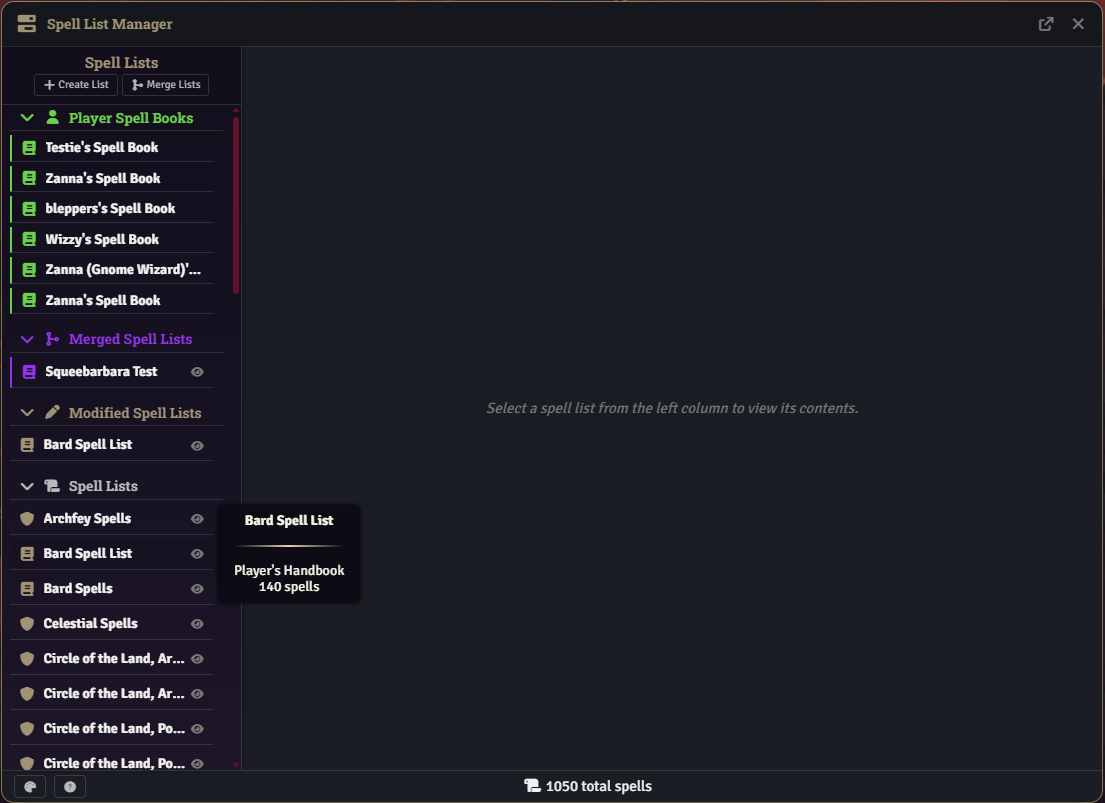
Spell List Manager - dark theme


Only GM (or GM Assistant) users can open the Spell List Manager. Open it from the Compendium sidebar tab and click the Spell List Manager button at the bottom.

On first open the module indexes every spell in every registered compendium. A progress notification (ui.notifications.info with a progress bar) ticks per pack as the fetch completes; this one-time work populates the cache for the rest of the session.


The Spell List Manager is a draggable window. Its custom header shows:

  • A fa-bars-progress icon on the left.
  • The “Spell List Manager” title.
  • A Detach button (arrow-up-right-from-square). This pops the manager into a standalone OS window. When detached, child dialogs opened from the manager (Create, Merge, Rename, Details Customization, Documentation, Spell Comparison) follow into the same detached window.
  • A Close button (X).

The window is draggable by the header strip itself. Clicking a button, link, input, or [data-action] inside the header does not initiate a drag.


The header contains two actions:

  • Create. Opens the Create Spell List dialog.
  • Merge Lists. Opens the Merge Spell Lists dialog.

Below the header, lists are grouped into collapsible folder sections:

FolderIconContents
Player SpellbooksuserActor-owned spellbook journals (wizard spellbooks and other actor-scoped lists).
Custom ListsmagicLists created via the Create action or marked isNewList.
Merged Listscode-mergeLists produced by Merge Lists.
Modified Spell ListspenAuto-created duplicates of stock lists (any list flagged isDuplicate).
Spell ListsscrollRegistered class / subclass lists shipped by dnd5e or another module.
Hidden Listseye-slashAny list whose UUID is in the HIDDEN_SPELL_LISTS setting.

Each list row has an eye icon (except actor-owned) to hide or unhide the list. Clicking the list body selects it and swaps the sidebar into filter mode.

Hovering a row shows a right-aligned HTML tooltip with the list’s full name (bold), source pack, and spell count.

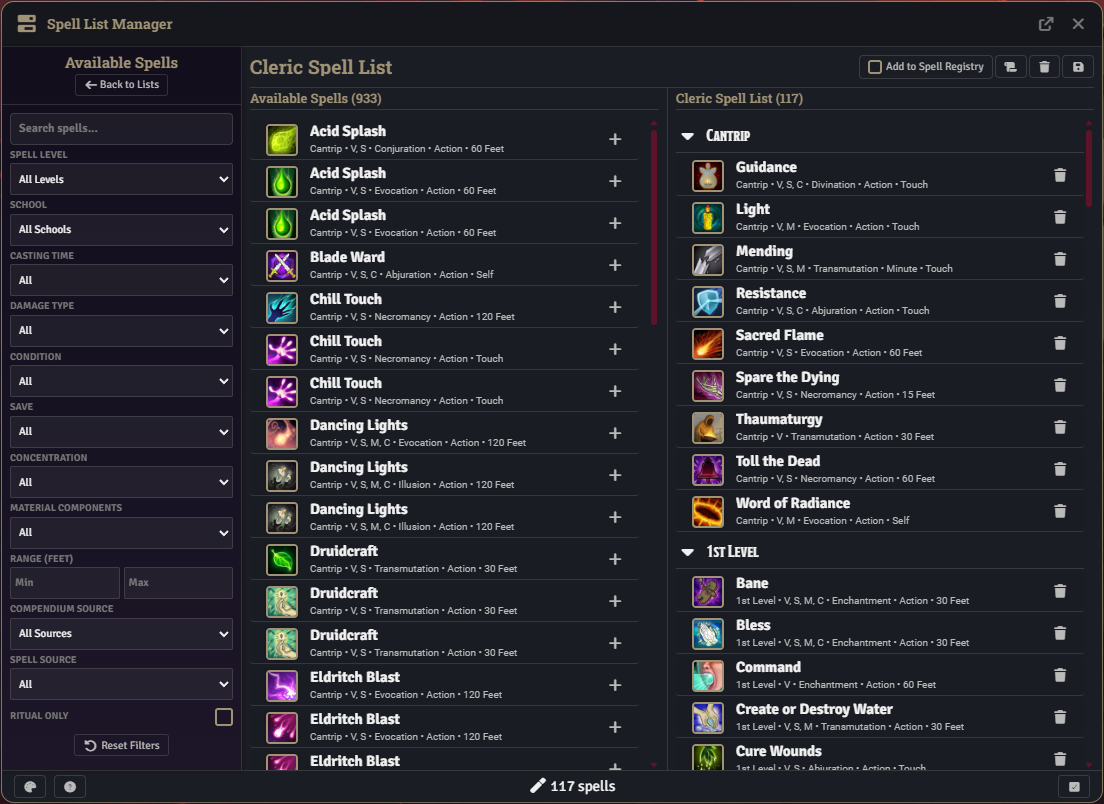
The header shows a back arrow (Back to Lists) that returns to the list browser without losing the current selection. Below it are filters that apply to the Available Spells panel only:

  • Search (text, name contains)
  • Spell Level (select)
  • School (select)
  • Casting Time (select)
  • Damage Type (select, includes Healing)
  • Condition (select)
  • Save (select: requires save, no save)
  • Concentration (select: yes / no)
  • Material Components (select)
  • Range (min / max number inputs, ft or m per world units)
  • Compendium Source (select)
  • Spell Source (select; resolves class:* identifiers)
  • Ritual Only (checkbox)
  • Reset Filters button

Filter selects and inputs use the themed border/background variables (--sb-border-medium, --sb-bg-input) so they visually match the rest of the spell-book UI under both dark and light themes.


A Select a spell list placeholder is shown.

Spell List Manager editing view with Available and Current panels

A header bar shows the list name and a row of action buttons. Buttons appear conditionally:

ButtonShown when
Add to Spell Registry (checkbox)Always
Rename (pen)List has isDuplicate, isCustom, isNewList, or is merged
Open Actor (user)List is actor-owned
Open Class (scroll)List’s class / subclass item is findable in a pack
Restore (sync)List is a modified duplicate and the source has drifted
Delete (trash)Always
Save (floppy)Always

There is no separate “Edit” button. Editing is always implicit: add or remove a spell and click Save. Saving a stock list auto-creates a modified duplicate (see below).

Below the header is the split view.

All compendium spells filtered by the sidebar filter panel. Each row has a + button to add the spell to the current list. Rows are draggable.

The panel renders lazily in batches of 50 rows. Scrolling within ~100 px of the bottom appends the next batch until the filtered set is exhausted. This keeps the DOM manageable even when thousands of spells match the filter.

Clicking + adds the spell’s UUID to the pending set. The guard only rejects an exact UUID duplicate; the same spell republished under a different pack UUID can be added separately from each source.

The spells currently on the selected list, grouped by spell level under collapsible headings. Each row has a trash button to remove the spell. Rows are draggable.

  • Drag from Available and drop on Current to add.
  • Drag from Current and drop on Available to remove.

Every add and remove is queued as pending changes in memory until you click Save. Switching lists or closing the window without saving discards pending edits.

Save Flow: Auto-Duplication of Stock Lists

Section titled “Save Flow: Auto-Duplication of Stock Lists”

When the currently selected list has none of the isDuplicate / isCustom / isNewList / actorId flags (that is, it’s a stock list shipped by dnd5e or another module), clicking Save transparently:

  1. Calls duplicateSpellList to create a copy in the spell-book.custom-spell-lists pack under the Modified Spell Lists folder. The duplicate is stamped with { isDuplicate, originalUuid, originalName, originalModTime, originalVersion } and mapped through CUSTOM_SPELL_MAPPINGS.
  2. Adds the original’s UUID to HIDDEN_SPELL_LISTS so the untouched stock list stops cluttering the sidebar.
  3. Writes your pending edits to the duplicate.
  4. Calls dnd5e.registry.spellLists.register on the duplicate so any spells you added start showing the class label on item sheets immediately. No reload required.

Subsequent edits of the original UUID transparently route through the mapping to the same duplicate.


When Compare is enabled in Details Customization, every spell row in both panels gets a scale icon. Clicking it adds or removes the spell from the comparison set. Once two or more spells are queued, a Spell Comparison dialog opens (detaches along with the manager if detached). There is no hard cap; the dialog widens as spells are added.


The top-right checkmark toggle in the footer enables bulk-selection mode. While active:

  • Each row in both panels shows a selection highlight in place of its action button.
  • Shift-click selects a range between the last clicked row and the current one.
  • The footer shows a live count of spells queued for add and remove.
  • Bulk Save commits all queued additions and removals in a single save.
  • Cancel Selection clears the queue and exits selection mode.

RegionContents
LeftDetails Customization (palette), Documentation (question-circle).
CenterWhen a list is selected: the selected list’s spell count. When no list is selected: the total indexed spell count.
RightSelection-mode toggle. In selection mode: the selection summary plus Bulk Save and Cancel Selection.

TypeFolderSourceEditable
StandardSpell Listsdnd5e system / other modulesSave auto-forks into a Modified duplicate
CustomCustom ListsCreated via Create (isCustom / isNewList)Yes, direct
MergedMerged ListsBuilt via Merge ListsYes, independent of sources
ModifiedModified Spell ListsAuto-created on first save against a standard list (isDuplicate)Yes, direct
Actor-OwnedPlayer SpellbooksWizard-style spellbook journals tied to a specific actorYes
HiddenHidden ListsAny list whose UUID is in HIDDEN_SPELL_LISTSSame rules as its underlying type

All dialogs below render using DialogV2.wait and inherit the manager’s attach/detach state, so opening the manager into a detached window routes its child dialogs into that window as well.

Create Spell List dialog

  • Name: display name (max 100 chars).
  • Class Identifier: dropdown of detected class identifiers, plus a Custom option that enables a manual identifier input (lowercase letters, digits, underscore, hyphen).
  • Subclass Spell List: checkbox; flag the list as a subclass list rather than a base class list.
  • Spell Lists to Merge: multi-select grouped by folder (Spell Lists, Custom Lists, Merged Lists, Player Spellbooks). Requires at least two selections.
  • Merged List Name: required.
  • Hide Source Lists: optional. When set, the chosen source UUIDs are added to HIDDEN_SPELL_LISTS after the merge.

Single-input dialog. Available only for custom, merged, newly-created, or duplicated lists. Stock lists cannot be renamed directly; rename one by editing its duplicate instead.

Full reference: Details Customization. Opens from the palette icon in the footer.

Help dialog rendered from a Handlebars template. Contains overview, creation steps, modification controls, integration notes, best practices, and social links.


Each selected list shows an Add to Spell Registry checkbox in the list header.

  • Enabling adds the UUID to REGISTRY_ENABLED_LISTS and calls dnd5e.registry.spellLists.register(uuid) immediately. Any spell on the list starts showing its class label on item sheets straight away; no reload required.
  • Disabling removes the UUID from the setting and shows a notification explaining that a reload is needed to clear already-registered contributions. dnd5e exposes no unregister API, so contributions from the previous registration persist until the world reloads.
  • On every save (including the first save against a stock list), the module calls ensureListRegistered so newly added spells show up on item sheets without manual toggling.

Enabled UUIDs persist across reloads via registerCustomSpellLists, which also prunes entries whose target page no longer exists.


Clicking Delete on a duplicate does three things:

  1. Deletes the duplicate’s journal entry from the custom pack.
  2. Removes its entry from CUSTOM_SPELL_MAPPINGS.
  3. Removes the original UUID from HIDDEN_SPELL_LISTS, restoring the stock list to the Spell Lists folder.

After deletion the sidebar returns to the list view (not stuck on an empty filter panel).


The Spell List Manager defines and stores lists; it does not load them onto actors. To make a list usable by a character, open that character’s sheet and assign the list per class through Spell Book Settings (Class Rules). That dialog has two explicit assignments per class:

  • customSpellList: the class’s primary spell list.
  • customSubclassSpellList: the subclass list (no more registry-based subclass lookup; this is explicit now).

See:


  1. Click Create in the sidebar header.
  2. Fill in name, class identifier (or pick Custom), and subclass flag if needed.
  3. Confirm. The new list opens automatically.
  4. Use the sidebar filters to narrow down the Available panel.
  5. Add spells via the + button, drag-and-drop, or selection mode.
  6. Click Save.
  7. Open the target character’s sheet and assign the list in Spell Book Settings.
  1. Click Merge Lists in the sidebar header.
  2. Multi-select source lists and provide a merged name.
  3. Optionally tick Hide Source Lists.
  4. Confirm. The merged list opens and can be edited like any custom list.
  1. Select a standard list.
  2. Add or remove spells. Pending changes accumulate in memory.
  3. Click Save. A modified duplicate is created, the original is hidden, the duplicate opens, and filters are cleared so the Available panel does not show “no matches”.
  4. The duplicate shows a Restore button that re-appears only when the stock source drifts.
  1. Select a list.
  2. Toggle selection mode from the footer’s checkmark.
  3. Click spell rows to flag them (shift-click for ranges).
  4. Click Bulk Save in the footer.