Creating New Spell Lists
Custom spell lists let GMs define the pool of spells a class, subclass, or homebrew group can draw from. The Spell List Manager writes all new, merged, and duplicated lists into the module’s spell-book.custom-spell-lists pack, so nothing is edited in place on system content.
[!TIP] For the full interface reference, see Spell List Manager Interface Overview.
Prerequisites
Section titled “Prerequisites”- You are logged in as a GM.
- The Spell List Manager is opened from the Compendium sidebar tab footer.
Creating a New List
Section titled “Creating a New List”
- Open the Spell List Manager.
- In the sidebar header, click Create.
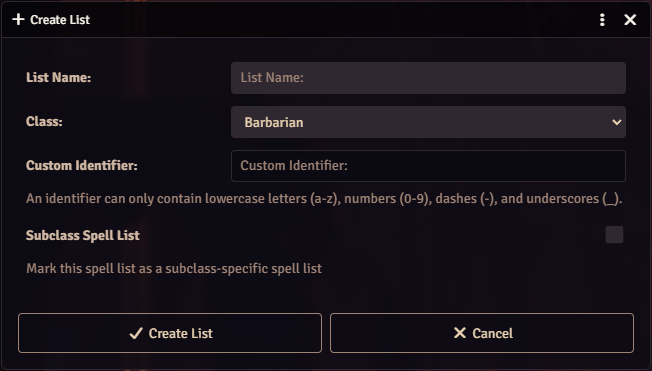
- In the Create Spell List dialog, fill in:
- Name: display name for the list.
- Class Identifier: dropdown of detected class identifiers, plus a Custom option at the bottom.
- Custom identifier: disabled until you pick Custom above. Accepts lowercase letters, digits, hyphens, and underscores (for example,
my-custom-class). - Subclass Spell List: check if this list represents a subclass rather than a base class.
- Click Create New List.
The new list is written to the custom pack’s Custom Lists folder with flags { isCustom: true, isNewList: true }, selected automatically, and shown in the split view with an empty Current List panel on the right. The module also registers the new list with dnd5e.registry.spellLists so its identifier is resolvable system-wide immediately.
Naming Guidance
Section titled “Naming Guidance”Clear names simplify long-term maintenance:
- Class based:
Wizard - Core,Cleric - Divine - Subclass:
Wizard - Bladesinger,Cleric - Twilight Domain - Setting or theme:
Low Magic - Restricted,Underdark Spell List - Versioned:
Wizard - Core (Homebrew v2)
Adding Spells
Section titled “Adding Spells”Editing is always implicit. There is no mode to enter.
- Browse Available Spells on the left. Click the list in the sidebar to switch the sidebar to filter mode. Filters include Search, Spell Level, School, Casting Time, Damage Type, Condition, Save, Concentration, Material Components, Range (min/max in ft or m), Compendium Source, Spell Source, and a Ritual Only checkbox. A Reset Filters button at the bottom clears them all.
- Add spells using any of:
- Click the + button on a spell row.
- Drag a spell row from Available onto the Current List panel.
- Drop a supported spell document onto the Current List panel from any other drag source.
- Remove spells from the Current List panel via the trash icon.
- Click the Save (floppy) icon in the list header to persist changes.
The guard against duplicate adds only rejects the exact same UUID. The same spell from two different packs will add independently.
Available Spells renders in batches of 50; scroll to the bottom of the panel and the next batch appends automatically.
[!NOTE] Use Back to Lists at the top of the sidebar filter panel to return to the list browser while keeping your selection.
Bulk Editing
Section titled “Bulk Editing”For large additions or removals, toggle Selection Mode via the checkmark in the top-right of the footer.
- Click spell rows in either panel to flag them. Shift-click selects a range between the last clicked row and the current one.
- The footer shows a live add/remove counter.
- Click Bulk Save to apply, or Cancel Selection to exit without saving.
Duplicating a Standard List
Section titled “Duplicating a Standard List”If you want a custom copy of a stock class list rather than a blank one, just edit it:
- Select the standard list in the sidebar.
- Add or remove a spell.
- Click Save. The module automatically:
- Creates a duplicate in the Modified Spell Lists folder with flags
{ isDuplicate: true, originalUuid, originalName, originalModTime, originalVersion }. - Adds the original’s UUID to
HIDDEN_SPELL_LISTSso the stock entry is hidden. - Maps original to duplicate via
CUSTOM_SPELL_MAPPINGS. - Registers the duplicate with
dnd5e.registry.spellListsso added spells show their class label on item sheets immediately.
- Creates a duplicate in the Modified Spell Lists folder with flags
A duplicated list can be returned to its source at any time using the Restore button in the list header. Deleting the duplicate un-hides the original and clears the mapping.
For the full edit flow see Modifying Existing Spell Lists.
Merging Lists
Section titled “Merging Lists”
- In the sidebar header, click Merge Lists.
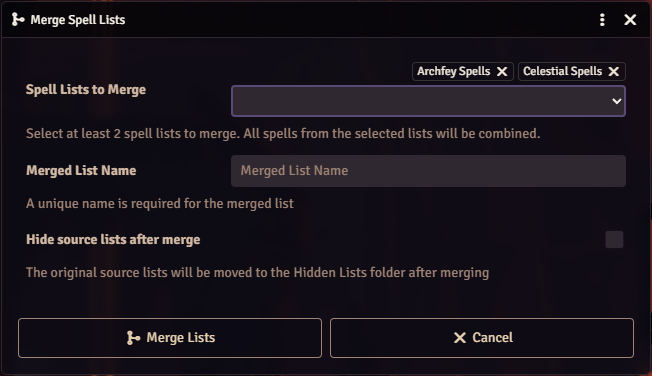
- In the dialog:
- Spell Lists to Merge: multi-select source lists (grouped by Standard, Custom, Merged, Player Spellbooks). Requires two or more.
- Merged List Name: required.
- Hide Source Lists: optional; adds the selected source UUIDs to
HIDDEN_SPELL_LISTSafter the merge.
- Click Merge Lists.
The new list appears in Merged Lists with flags { isCustom: true, isMerged: true, sourceListUuids: [...] } and contains the deduplicated union of all source spells. Merged lists are independent of their sources; edits to a source after the merge do not propagate.
Assigning a List to Characters
Section titled “Assigning a List to Characters”The module does not auto-load custom lists onto actors. Use one of the two paths below.
Per Actor via Spell Book Settings (recommended)
Section titled “Per Actor via Spell Book Settings (recommended)”Open the character sheet’s Spell Book, click the cog icon in the header to open Spell Book Settings, then set:
- Class Spell List: one or more list UUIDs for the class’s primary list (
customSpellList). - Subclass Spell List: one or more list UUIDs for the subclass (
customSubclassSpellList). Explicit only; the module no longer infers subclass lists from the registry.
See Class Rules for all fields in the dialog.
Global via the Registry Toggle
Section titled “Global via the Registry Toggle”In the selected list’s header, tick Add to Spell Registry. This adds the UUID to REGISTRY_ENABLED_LISTS and calls dnd5e.registry.spellLists.register immediately, so any class or subclass matching the list’s identifier resolves to it system-wide.
[!WARNING] Enabling the registry toggle on multiple lists that share an identifier can lead to unpredictable resolution. Disabling a list removes it from the setting but cannot reverse contributions already pushed; a world reload is required to clear those. Prefer one registry-enabled list per identifier.
Validation Before Play
Section titled “Validation Before Play”Before exposing a new list to players, confirm:
- No missing or broken compendium references on spell rows.
- No deprecated or removed spells from source material.
- No duplicate or unintended entries (remember: the add guard only rejects exact UUID matches; two copies of the same spell from different packs will both appear).
- The list is assigned via Spell Book Settings, or the registry toggle is enabled.