
General Store
Wiki updated as of 0.7.0 (Oct 2026)The general store archetype builds The Odd Shelf, a counter shop run by a keeper of few words. Players browse the shelves, dig through a bargain bin, sell their own goods, put a special order in, run a tab, and pump the keeper for local news. The keeper greets newcomers and regulars differently, and the greeting changes with the time of day and the season.
Setting it up
Section titled “Setting it up”Pick General Store on the Basics step of the Shop Builder. See Shop Archetypes for the builder flow.
Besides the dialogue tree, the archetype applies these to the shop:
| Applied | Where to change it |
|---|---|
| Shop title | Shop Title in Shop Settings. |
| Theme | Lamplit Counter, on the counter chassis. See Themes and Chassis. |
| Accent and music | Accent Color and Ambient Track in Shop Settings. |
| Opening hours | A daytime schedule with hours enforced, under Availability in Shop Settings. |
| Haggling | Turned off, under Haggle in Shop Settings. |
| Tab | A Tab Limit, under Pricing in Shop Settings. |
| Restocking | Restock on Day Change turned on, used while Calendaria is active. See Stock and Restocking. |
The tab limit and the bargain bin’s price cap scale to the active system’s currency.
Lamplit Counter has a single room. Arrange the keeper, customer, and signboard with the layout editor described in Themes and Chassis.
What to stock
Section titled “What to stock”The shelves show every item in stock. The bargain bin shows in-stock items priced at or under the cap in the bin’s Price At Most filter. Stock ordinary adventuring gear plus a handful of cheap items for the bin.
Daily restocking suits this shop. Give each item a quantity and a cadence on the Stock tab, or attach a roll table.
What players can do
Section titled “What players can do”The front counter offers each of these as a choice. After any errand the conversation returns to the counter with the same list.
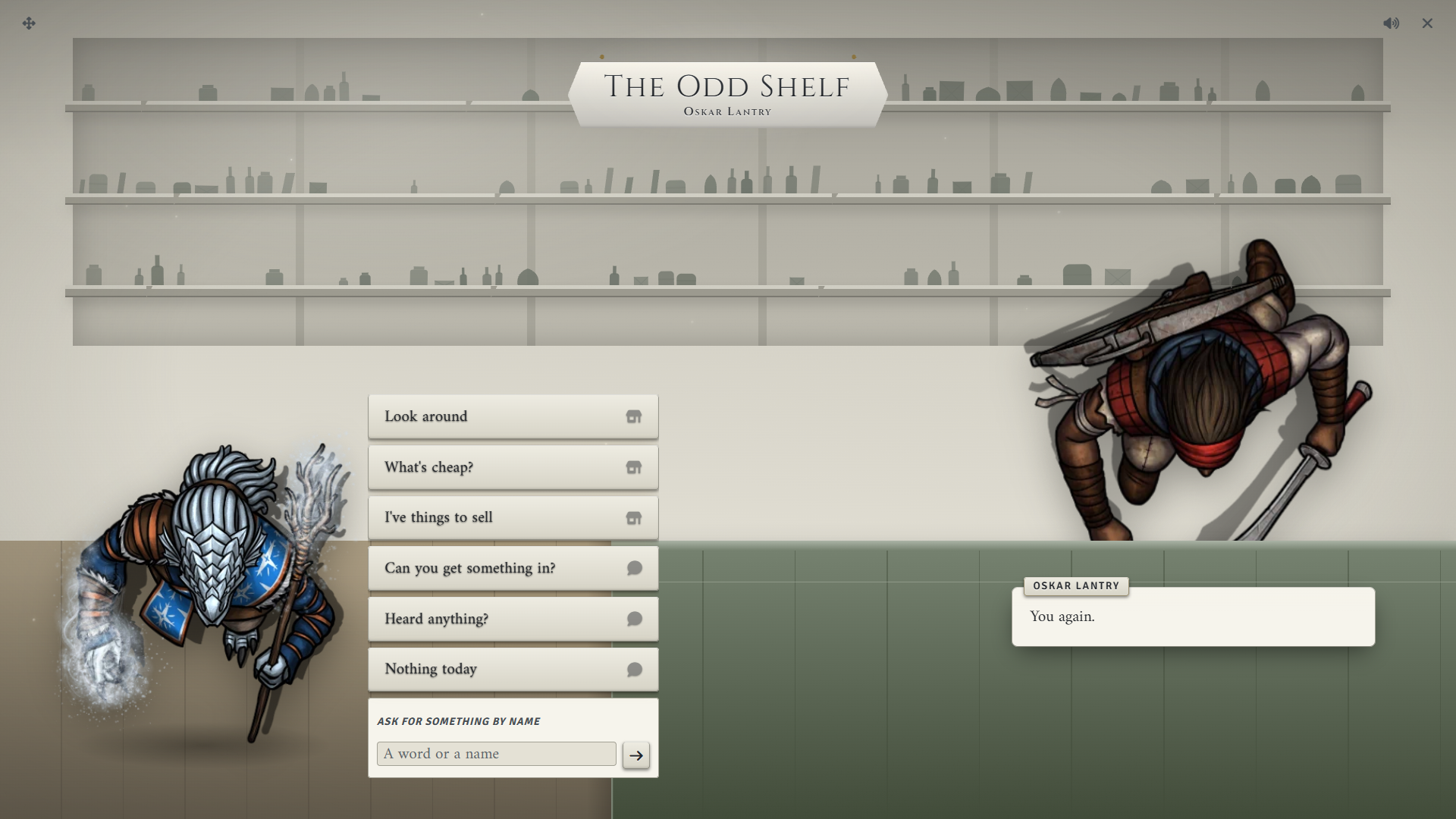
Look around
Section titled “Look around”Opens the shelves with the full stock. The keeper occasionally comments as items go into or come out of the cart. If the buyer cannot afford the cart, the keeper suggests the bargain bin and offers a choice to go straight there. A buyer with room on their tab can put the shortfall on it instead from the confirm screen.
What’s cheap?
Section titled “What’s cheap?”Opens the bargain bin, the same shelf filtered down to cheap items.
I’ve things to sell
Section titled “I’ve things to sell”Opens the sell screen, where the buyer picks items from their own inventory. The shop pays from its own coin. When it cannot cover the sale, the keeper says the till is empty and sends the buyer back to the sell screen. To resell bought items at a markup, set Buyback Markup, described in Haggling and Pricing.
Ask for something by name
Section titled “Ask for something by name”Gives the player a text box. Typing the name of a stocked item opens the shelves searched for it. Keywords open the shelves, the bin, the sell screen, or the order and news branches. Anything else gets a “not stocked” reply with an offer to order it in.
Can you get something in?
Section titled “Can you get something in?”Starts a special order. The player describes what they want, and the request goes to you for a quote. See Special orders. This choice is hidden while the character already has an order open.
Is my order in?
Section titled “Is my order in?”Appears while the character has an order open. Before the order’s ready time, the keeper turns them away. After it, the hand-over begins.
Settle my tab
Section titled “Settle my tab”Appears while the character owes the shop money. It opens a card where they pay down what they owe.
Heard anything?
Section titled “Heard anything?”Opens a skill check against a ladder of DCs. Each tier beaten unlocks one more rumour, and a failed roll gets a brush-off. The result holds for that character until morning, so they can return to the node and hear the same news without rolling again.
Nothing today
Section titled “Nothing today”Ends the visit. The farewell line depends on whether the buyer bought anything.
Running it
Section titled “Running it”Special orders
Section titled “Special orders”When a player asks for something, you get a Special Order Request dialog with their request. Enter a price and how many days until it is ready, then click Send quote, or click Turn it down. The player sees the price, the days, and the payment terms, then places the order or declines.
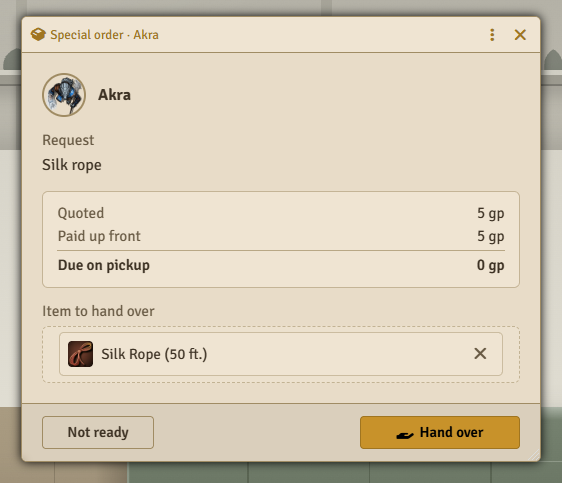
Special Order Payment in Shop Settings decides when the buyer pays: upfront, on collection, or half of each. With Calendaria active, placing an order creates a GM-only reminder note and a pickup note for the buyer’s owners, both dated to the ready time.
When the buyer asks for the order after its ready time, a Special order window opens for you. It shows the request, the quoted price, and what is still due. Drag the finished item from the sidebar, a compendium, or an actor into the window and click Hand over. Peddler gives the buyer a copy and leaves the original where it was. A journal entry can be dropped in too, and the buyer’s players get Observer access to it when the buyer takes it. Click Not ready to tell the buyer to come back later. The buyer then pays any balance and takes the item, which closes the order.
A character can hold one open order per shop. A GM must be logged in to quote or hand over an order.
The tab
Section titled “The tab”A player who is short at checkout can put the difference on the tab while the total owed stays within the tab limit. They pay it off from Settle my tab or from the confirm screen on a later visit. Outstanding tabs are listed on the History tab in Shop Settings.
System notes
Section titled “System notes”The town news check uses the skills the active system adapter assigns to rumours. In a system with no skills, Heard anything? is hidden.
Seasonal greetings and shelf remarks read the season from the world calendar. A calendar without seasons never shows them.
Customizing
Section titled “Customizing”The greetings, rumours, keyword list, bargain bin cap, and every other line are ordinary nodes and choices. Edit them in the Dialogue Tree Editor.
The keeper treats every visitor as a regular once any visit has left through the door. Unset the shop flag metParty with a tree effect to bring back the first-visit greeting.
Switching the shop to another archetype in Shop Settings rebuilds the tree from scratch and discards your edits.