
Combat Dock
The dock shows the viewed combat as a row of cards on the canvas. The GM sees it once the combat has combatants. Players see it after the combat starts.

Styles
Section titled “Styles”Each player picks a Dock Style for their own screen:
- Codex keeps the cards in turn order and marks the active one.
- Blade puts the active combatant first and moves the rest of the round after it, with a divider before the next round.

Minimal Cards shrinks waiting cards until hovered. Tuck Inactive Cards slides them partly under each other.
Placement
Section titled “Placement”Drag the grip on the round panel to move the dock. Drop it near a screen edge to snap it there, or anywhere else to let it float. Double-click the grip to rotate a floating dock.
The GM can force every player’s dock onto one edge with Force Dock Placement, and stop players from hiding it with Lock Dock for Players.
The round panel
Section titled “The round panel”The round panel shows the round, the count of allies against enemies, and the turn clock. The GM also sees the total combat time and gets the combat controls: turn and round buttons, initiative rolls, start and end, adding a round event, replaying the VS screen, and the settings panel.
Click a card to select and pan to its token. Each card shows the actions its owner can take: roll initiative, End Turn on the active card, ping, and pan. The GM also gets Nudge Player and a menu with the tracker’s combatant options.
The GM can drag a card onto another to move that combatant just ahead of it in the turn order.
Dock Card Elements sets whether the name, health, initiative, and effects show always, on hover, or never.
Stacks
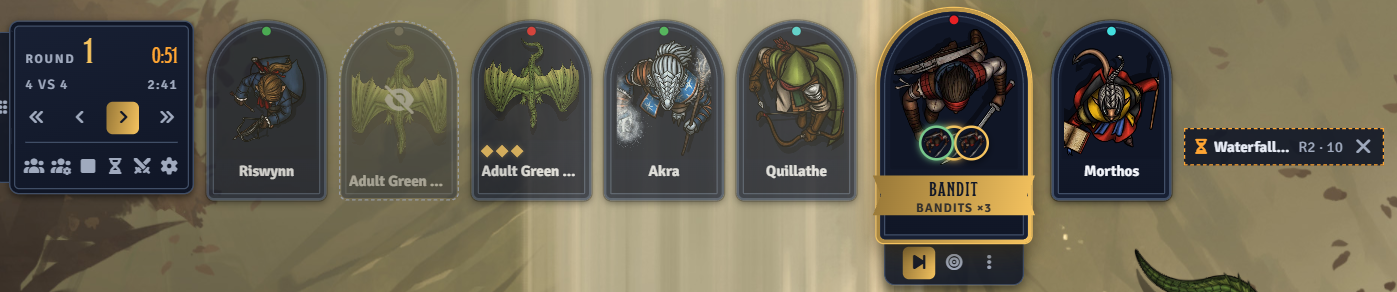
Section titled “Stacks”With Stack Groups and Summons on, a combatant group, or a creature and the summons acting right after it, share one card. The card flips to whichever member is acting. Shift-click End Turn to end the turn for everyone still waiting on the card.
Legendary actions
Section titled “Legendary actions”On D&D 5e, a creature with legendary actions shows a row of pips to the GM and its owners. Click to spend one, right-click to restore one.
Turn reminders
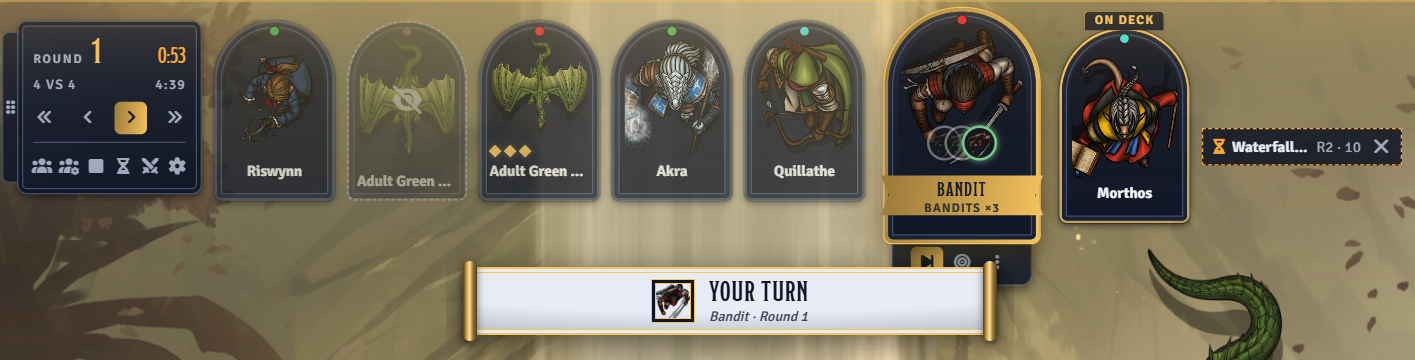
Section titled “Turn reminders”When a player’s combatant starts its turn or is next, that player sees a banner and a glow around the screen edges. The GM is reminded for combatants no player owns. Each player chooses which reminders they get, including panning to and selecting their token.
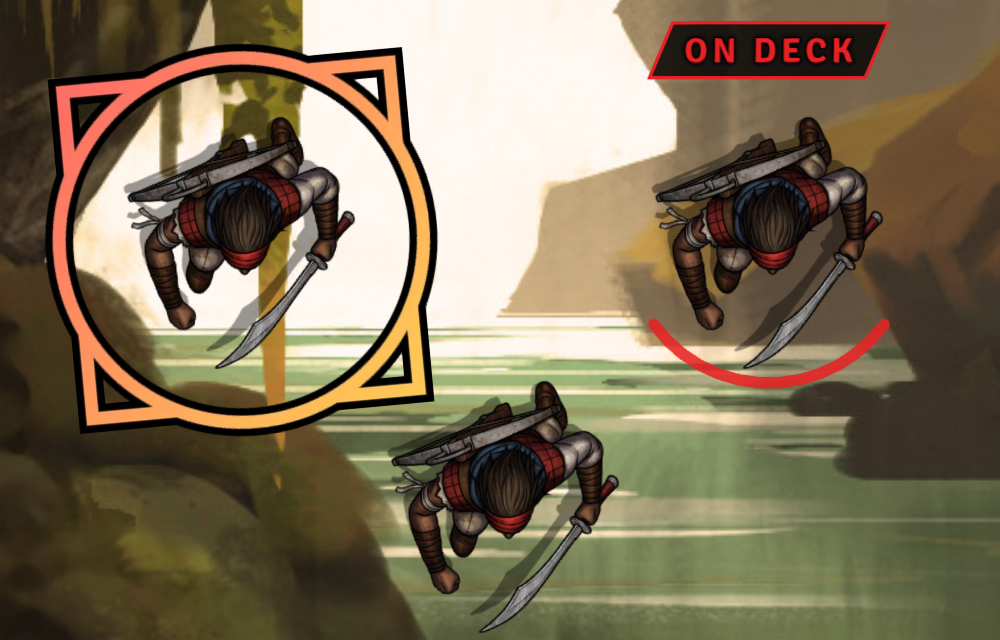
The On Deck Marker draws an arc and an On Deck tag on the next combatant’s token.
The GM can nudge the player whose turn it is from the card’s bell button or the combat tracker’s combatant menu. The player hears the turn sound again, sees a banner, and gets a whisper.
Turn clock
Section titled “Turn clock”The turn clock counts down from the Turn Clock setting and keeps counting past zero. When the Turn Clock Runs Out can nudge the player or end the turn automatically.